I’ve been looking back at old journal entries in Day One, and posts on this blog, and it looks like I’ve been at least a bit sick every Christmas so far this decade. And this year is no exception. I’ve been having issues on and off all month. I thought I was getting better yesterday, but I had trouble sleeping last night and feel worse today. So, today, I’m in a state where I haven’t had enough sleep, my nose is stuffed up, and my stomach is bothering me.
So all that is to say that I’m not going to be very ambitious today. Rest and recuperation. Plenty of fluids. All that.
Meanwhile, I’m still working on my Obsidian setup. I’ve started watching the Obsidian Field Guide, from David Sparks. I paid for the full $99 “plus” version. That seems like a bit much, but I’ve been listening to his MPU podcast for years without supporting it, so I might as well toss some money his way.
It’s pretty good, though it’s a couple of years out of date at this point. (It was made in 2023.) For instance, he covers Dataview rather than Bases. I’ve worked my way through about half the course. I’ve found it oddly relaxing. There’s something about learning a certain kind of thing… It’s hard for me to put my finger on just what it is. Maybe it’s just that I’m not going to have to take an exam on Obsidian, like I have with the other stuff I’ve been learning this year. (See previous posts on AZ-900, AZ-204, and GH-300.) Anyway, I think I’ve going to spend some more time today working through the videos. It seems like a dumb thing to do on Christmas, but I don’t have enough energy for anything else, really, and I’d rather do this than watch TV right now.
I’m aware that, with something like Obsidian, you can go down a rabbit hole, where you’re spending so much time learning stuff and tweaking your setup, that you don’t actually get anything useful done. But I think I’ve got a pretty workable system figured out at this point, and I’m probably only a little less productive with Obsidian now than I previously was with Evernote. Hopefully, I can soon get back to the point I was at with Evernote, where I’m not thinking about the system too much, and I’m just using it effectively.
Well, today is the last day of my week-long “vacation.” It wasn’t really much of a vacation. The weather was terrible, and I was feeling kind of sick all week, so I just stayed home and tried to get some stuff done, and relax a bit.
I managed to get my Evernote to Obsidian migration done, I think. There are still a lot of things I could tweak, but I think I’ve established a usable system that’ll work for now.
Here are links to my previous Obsidian posts from this week:
I haven’t had any sync issues, since the one I mentioned at the end of the “day three” post. I’m hoping that was just a fluke. My plan is to cancel my Evernote account early in the new year, before it renews.
Well, I’m now on day three of my vacation week, and day three of my Obsidian setup. (See here for day one and day two.) I’m going to write up some notes below on various things I’ve been working on.
Obsidian Sync
I signed up for Obsidian Sync, at the $8/month Plus level. For now, I’m paying month-to-month, so it’s actually a $10/month plan. I wasn’t sure if I needed Plus or Standard. My vault is around 700 MB, so it’s under the 1 GB limit. But I initially had some attachments that were over 5 MB, so that might have been an issue. I think I’ve removed or resized all of those now, so I could probably make do with the Standard level. The Plus plan also gets you a full year of revision history, which is nice, so I might stick with that either way. I’m not sure yet.
I’d previously experimented with simply putting my vault in OneDrive and iCloud. OneDrive worked fine for PC/Mac sync, but wouldn’t have worked on iOS. I thought iCloud might work OK on iOS, but it’s a little iffy. So, for now, I’m paying for Obsidian Sync.
Obsidian Sync does seem to work fine on iOS and iPadOS, but there’s one thing I’ve noticed that I didn’t initially think about: Obsidian, even on iOS, is local-first, so your whole vault gets synced to your iPad and iPhone. That’s not a huge problem, but it’s interesting to see that the Obsidian app on my phone is using 800 MB of storage, while Evernote is only using 500 MB. I think Evernote caches a certain amount of information locally, but the design is online-first, so (I think) it’s always going to try to get info from the cloud.
Tasks
My big project today has been converting all of my Evernote reminders to tasks. I’m still a little nervous about this. I’m losing the email reminders and iOS notifications that Evernote provides. So I’m going to have to be good about looking at my main task note in Obsidian. This is how I track important life stuff, like paying bills, so if it falls apart, I’m in trouble.
I’ve now done the migration, and I have 70 tasks in my vault. I did the migration manually, rather than trying to create a script to do it. I wanted to be able to review all of the notes associated with the reminders, and think about them, and maybe revise them a bit.
One thing I did to make this all easier: I assigned a shortcut key to the “create or edit task” command. I used Alt-T for that (Opt-T on the Mac). The pop-up dialog for this is reasonably easy to use. I do have one big problem with it though: there’s no date picker. When I’m setting due dates on tasks, if they don’t need to be done on a specific day, I like to set them to the closest Saturday, which is my usual day for taking care of random to-do items. I guess I’ll have to live without that for now.
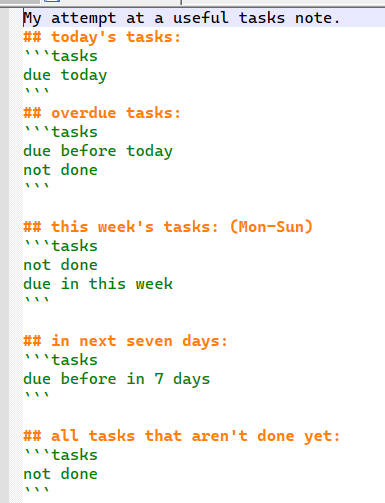
To actually view the tasks, I have a “task note” with a number of task queries on it. For now, it looks like this:
task note
(I tried to insert the code here, but WordPress got confused, so I’m just putting a screenshot here.)
So not too fancy. I’d really like to find a way to format this a bit better. Maybe in a table? If there’s a way to show task info in a “base”, I haven’t figured it out yet. I did use a base to show all of my Evernote reminders, and that worked well. I might as well stick that in here too:
This is basically showing all notes that had an Evernote reminder, but did not have a “reminder done” date.
In working through my reminders/tasks, I’ve noticed that a lot of them are just reminders to review a given annual subscription before it renews. I think I might look at seeing if there’s a way to categorize these specific tasks and separate them out. Maybe a “#subs” tag or a property. And once I started thinking about properties, I started thinking that I could have a specific type of note with a number of specific properties that I could use to organized my subscriptions. Maybe properties for renewal date, cost, URL, and so on. Well, that’s a project for later maybe.
Images
I may have gone a little overboard with image cleanup today. I installed this plugin, which is a simple little script that renames all images on the current note to match the note title. So, for instance, ‘IMG_1234.jpg’ becomes ‘drivers license 2014.jpg’. It only does this for one note at a time. So I went through my main archive folder and ran it on, probably, around 400 notes. And did some general note cleanup along the way.
I think I need to stop myself from going overboard with miscellaneous note cleanup. It’s easy for me to go down a rabbit hole of doing low-value file maintenance tasks and losing sight of the big picture. This has been a problem for me, in general, really. Obsidian really gives me an opportunity to waste a lot of time fiddling with unimportant stuff, and I need to watch out for that.
(Update: I had some sync issues after all of those image file renames, so I think I’m going to delete the plugin linked above. I don’t know if the sync problems were due to the plugin, or something else, but… better safe than sorry. And I’m hoping that the kind of sync issues I just had aren’t common with Obsidian sync. If they are, then I’m going to need to go back to Evernote!)
As per my previous post, I went ahead and migrated myself from Evernote to Obsidian yesterday. I’m now almost at the point of no return. (Or at least at the point where I’d have wasted a lot of effort if I were to throw it away now and go back to Evernote.)
I used Yarle for the migration. I’d done several experimental, partial, migrations first. For the final migration, I did all of my Evernote notebooks all at once. (I had a thought in my head that Yarle might resolve cross-notebook links if I did that.) The migration went pretty smoothly, but Yarle seemed to lock up at one point. I checked the count on the output files, and it seemed like it had created all of them, so I did an “end task” on it and proceeded from there.
In the end, I’ve wound up with a lot of broken links. I’m starting to wonder if killing the Yarle process was a mistake. Maybe it had created all of the .md files, but was still reconciling the links? I don’t really know enough about how Yarle works.
Either way, I’m now cleaning up hundreds of broken links. With the broken links plugin, I’m able to at least identify them easily. There are actually two different kinds of broken links in my vault now: there are many ‘regular’ broken Markdown links; I can ID those with the plugin. Then, there are links that point out to share.evernote.com, which didn’t fully get converted to Markdown links. Those are technically ‘valid’ links, but of course they open up my original Evernote notes in a web browser, so I’ll need to clean those up too.
I started doing the link cleanup manually, but at some point, I saw how big the job was getting, and decided to write a couple of helper scripts. With the help of Kagi Assistant, I wrote two PowerShell scripts. The first cleaned up links where Yarle had left them in a format like this: [[guid/guid|name of link]]
In that case, I wanted to change them to: [[name of link]]
And for the second case, I wanted to clean up the external Evernote links, like this: [name of link](https://share.evernote.com/note/guid)
To again change them to this: [[name of link]]
I didn’t even really test these scripts, I just backed up my vault, then ran them. And, surprisingly, they seemed to work right on the first attempt.
So that got me through most of the link cleanup. I then did a bunch of manual fixes, and just kept going until the “broken links” list was empty.
(I may have mixed up my tenses in this post. I started writing it as I was working on the migration, and finished it after I got all the link cleanup done. Sorry.)
My next task will likely be attachment cleanup. I guess that’ll go in yet another blog post!
I got an email from Evernote last week letting me know that my subscription price would be increasing to $250/year, effective January 7, when my annual subscription renews. It had gone up to $130/year in 2023. Prior to that, it was $70/year.
I’m not really unhappy with Evernote as a product, or with Bending Spoons as a company, but the price on it is getting a bit ridiculous. Here are some links to articles/videos of other folks talking about the price increase:
I had previously experimented with moving to Obsidian, in 2023, but didn’t go through with it. But now, it’s looking like I really need to do something. Maybe I could afford $250/year for Evernote if I thought they were going to stick with that price for the foreseeable future, and continue making the app better. But I’m just not convinced that they’re on a good trajectory, in terms of my own personal use-case for the product.
Cory Doctorow coined the term en****tification a while back, and it’s a useful term, though I wish he had come up with something that didn’t incorporate one of George Carlin’s seven dirty words you can’t say on TV. Still, it’s a good term. Here’s a Metafilter discussion on the (let’s call it) enpoopification of note-taking software, from 2023. I’m not sure if Evernote really falls into this category, but you could make a good case for it.
So, anyway, I’m back to experimenting with Obsidian. Luckily, I’m taking this coming week off from work, to use up my vacation days for the year, so I’ve got the time for it.
I’ll probably post more about this when I get farther along, but I thought it would be useful to write up some initial notes, informed by my previous efforts, and by watching a whole bunch of YouTube videos.
I’ll start with the process of importing from Evernote. For that, I’m using Yarle. Obsidian now has an official importer for Evernote, but I think Yarle is probably still better. Looking at the commit history on Yarle in Github, I see that the author has continued to work on it. Having tried it out again, I’m not sure if it’s working better than it was in 2023, but it’s definitely working well enough, I think.
I’ve been tweaking my template for Yarle. Here’s what I’ve got at this moment:
So I’m putting a bunch of stuff in the “frontmatter” of the note. This stuff is mostly just there for reference; I won’t actually need it going forward. I plan on converting Evernote’s reminders into Obsidian tasks, either manually or via a script or something. And the tags block seems like the cleanest way to get the tags over from EN.
The only setting in Yarle that I’ve changed from the default is to set “store attachments in notebook level” to yes. I’m still not sure about the way I’m dealing with attachments, but I think this is good enough.
As for my Obsidian setup, I think I’ve settled on a batch of plugins that’ll give me most of the functionality I need (with some compromises and caveats). Here’s the list:
Notebook Navigator – This is a great one that allows you to get your Obsidian screen to look a lot more like what I’m used to with Evernote. Getting this installed got me past a lot of my hesitation with Obsidian.
Omnisearch and Text Extractor – These two should bring some decent search functionality to Obsidian.
Tasks – I’m going to try to replace the Evernote reminders functionality using Tasks. I know I won’t be able to do a lot of the stuff that Evernote can do (email reminders for instance), but I think I can get a workable system cobbled together.
Broken Links – I’m using this to identify broken links in my imported notes. I’m seeing a lot of problems there, actually. I won’t get into the details here, but I’m going to have a lot of fix-up to do, I think.
Whew. So maybe that’s enough for this blog post. I intend to spend a bunch more time working on this tomorrow.
One thing I want to do this time is to make a relatively quick decision to either switch over or not, and to go all-in on Obsidian if I do. I don’t want to dither on it, and wind up having to renew my Evernote subscription, then spending a lot of time flipping back and forth between the two systems. (I’m kind of doing that with Raindrop.io and Pinboard right now, and it’s not optimal.) Sink or swim!
I took and passed the GitHub Copilot GH-300 exam last week. That’s the third Microsoft exam I’ve passed this year! (The others were AZ-900 and AZ-204.) This exam was pretty easy. I did these two learning paths from Microsoft:
…and that was it, really. I worked through some of the example projects. And I made a point of trying to use GitHub Copilot for some stuff at work over the last couple of months.
Overall, I’m not that impressed with GitHub Copilot. It’s cool when it works, but when it gets confused, or gives me bad info, then I feel like I’ve wasted my time. Generally, for most stuff, I’ve found that searching Stack Overflow gets me better results than asking Copilot.
I haven’t found a single case yet where trying to get agent mode to do something even mildly complicated produces good results. I have, of course, already hit the issue where agent mode insists that it’s doing something, when in fact it is not doing anything. That’s frustrating. And once it’s gone down that path, you really can’t convince it that it’s lying/hallucinating/whatever.
Maybe I just haven’t learned all the ins and outs of prompting it yet. I’ll keep trying. I’m still not quite “drinking the Kool-Aid” on all of this AI stuff. There’s a lot of overblown hype out there. I do think there’s some usefulness to it, but it’s not as powerful as some people think it is.
I managed to solve a problem using Windows Sandbox a while back, and I thought I should blog about it.
The basic problem was this: I needed to run a PowerShell script that relied on a specific combination of old modules. It had to be run in the old Windows PowerShell, not PowerShell 7. I had originally hoped that I could find some way to set up a PowerShell sandbox of sorts, but there didn’t seem to be an obvious way to do that. So then I started looking into Windows Sandbox.
We start with a .wsb file that defines the sandbox. Mine looks like this:
This maps \\my-pc\c$\dev\Projects\myproject from my dev VM to C:\myproject in the sandbox.
And it runs c:\myproject\myfolder\sb-start.cmd once the sandbox starts.
I had a little trouble getting all of this right. I really wanted to have the logon command set up the PowerShell environment fully, and maybe even run my script, but that didn’t work.
So the startup command file just has this:
So it starts Explorer and PowerShell, pointing at my work folder. Good enough.
Then, I manually run a script I call sandbox-setup.ps1, which looks a bit like this:
And then I can run the actual script. It produces a .CSV file, which is written to the mapped drive, so I can shut down the sandbox after running the script.
On the one hand, this feels like a kludgey way of doing this. On the other hand, it’s the simplest way I could think of. For more info on running PowerShell scripts in Windows Sandbox, see here.